

How To Create A Challenge In Fitbit
Healthy competition is what moves the world forward. Healthy is the keyword here, since we're talking about Fitbit! This fitness tracker and app combo lets you challenge your friends so that you don't have to hold yourself accountable; the pain of defeat will.
Here's how to get going with Fitbit challenges!
- How to create a Challenge in Fitbit for iPhone or iPad
- How to accept a Challenge in Fitbit for iPhone and iPad
- How to invite friends to an existing Challenge in Fitbit for iPhone and iPad
- How to leave a Challenge in Fitbit for iPhone and iPad
How to create a Challenge in Fitbit for iPhone or iPad
Be the ringleader in a circus of fitness! Start challenges and bring everyone into your exercise arena!
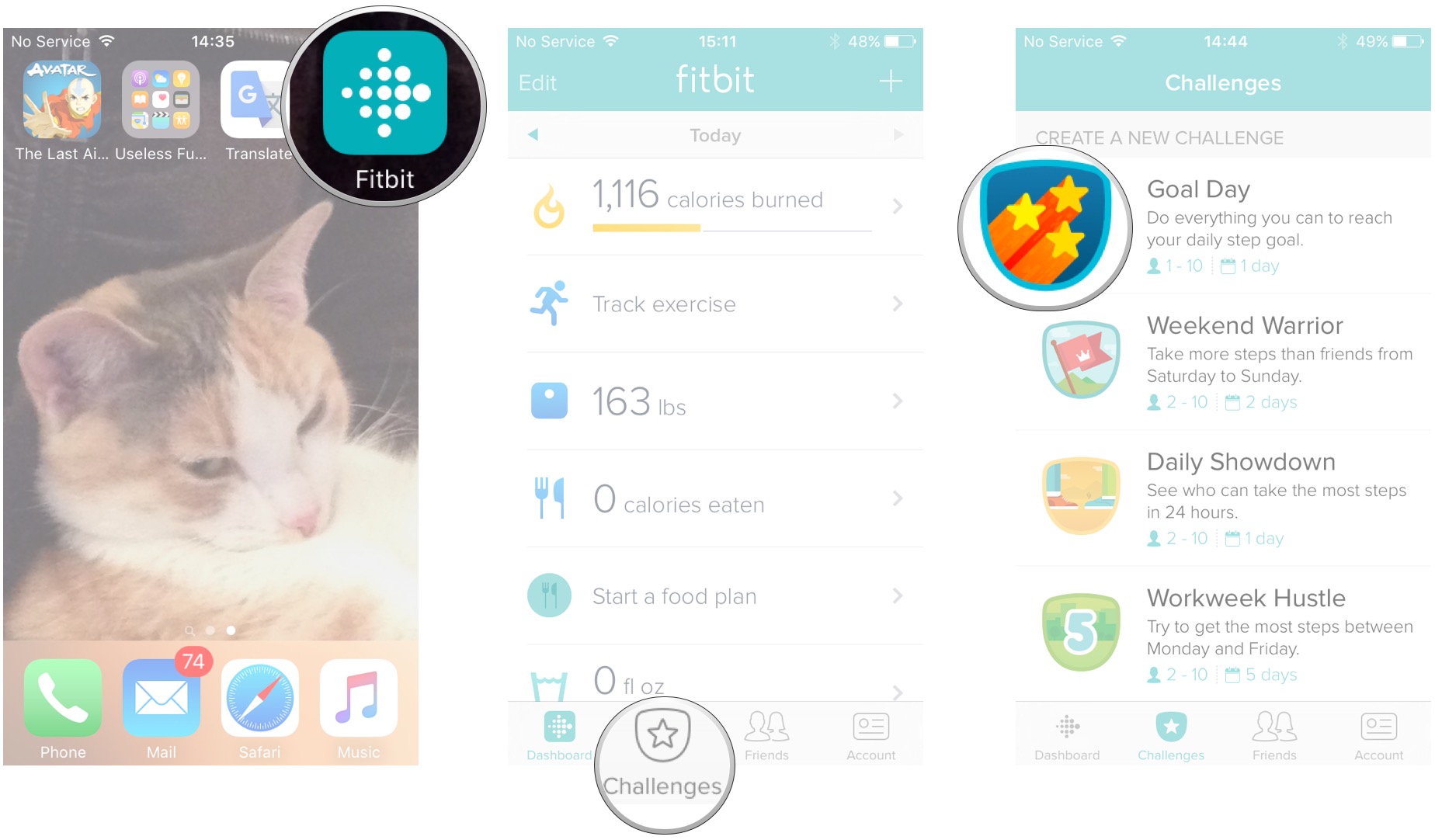
- Launch the Fitbit app from your Home screen. It looks like a white diamond, made of little circles, on a teal background.
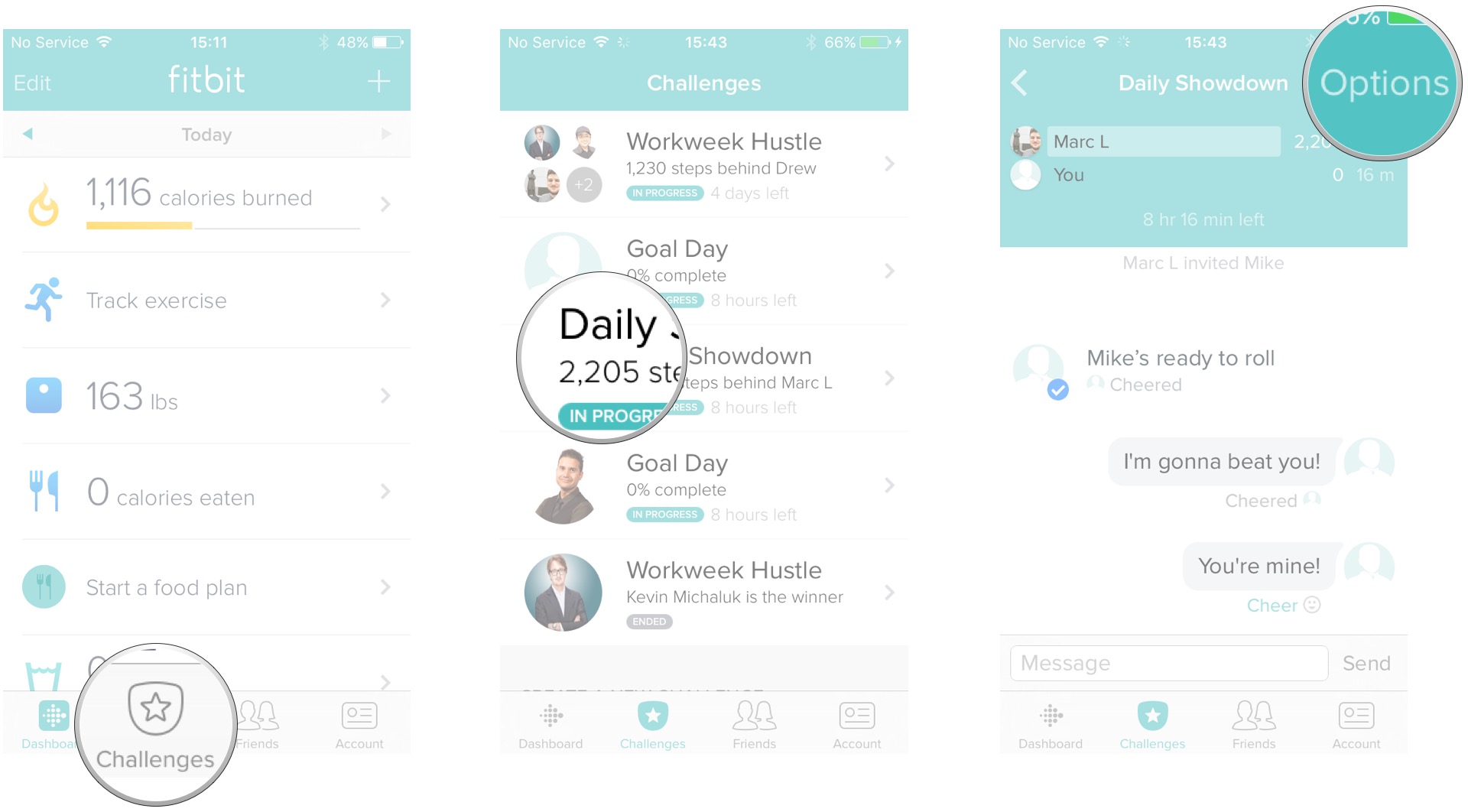
- Tap Challenges at the bottom of the screen. It's the shield with a star on it.
-
Tap a challenge from the list.
- Goal Day: Challenges you and your Fitbit friends to hit your daily step goal.
- Weekend Warrior: Take more steps than your Fitbit friends on Saturday and Sunday.
- Daily Showdown: See who can hit the most steps in 24 hours.
-
Workweek Hustle: challenge your Fitbit friends to see who can get the most steps between Monday and Friday.
- Tap Start Now to start the challenge immediately. If you'd like to start the challenge tomorrow, tap Start Tomorrow.
- Tap the friends you'd like to challenge. Selected friends will have a checkmark to the left of their profile image.
-
Tap Start on the top right of your screen.
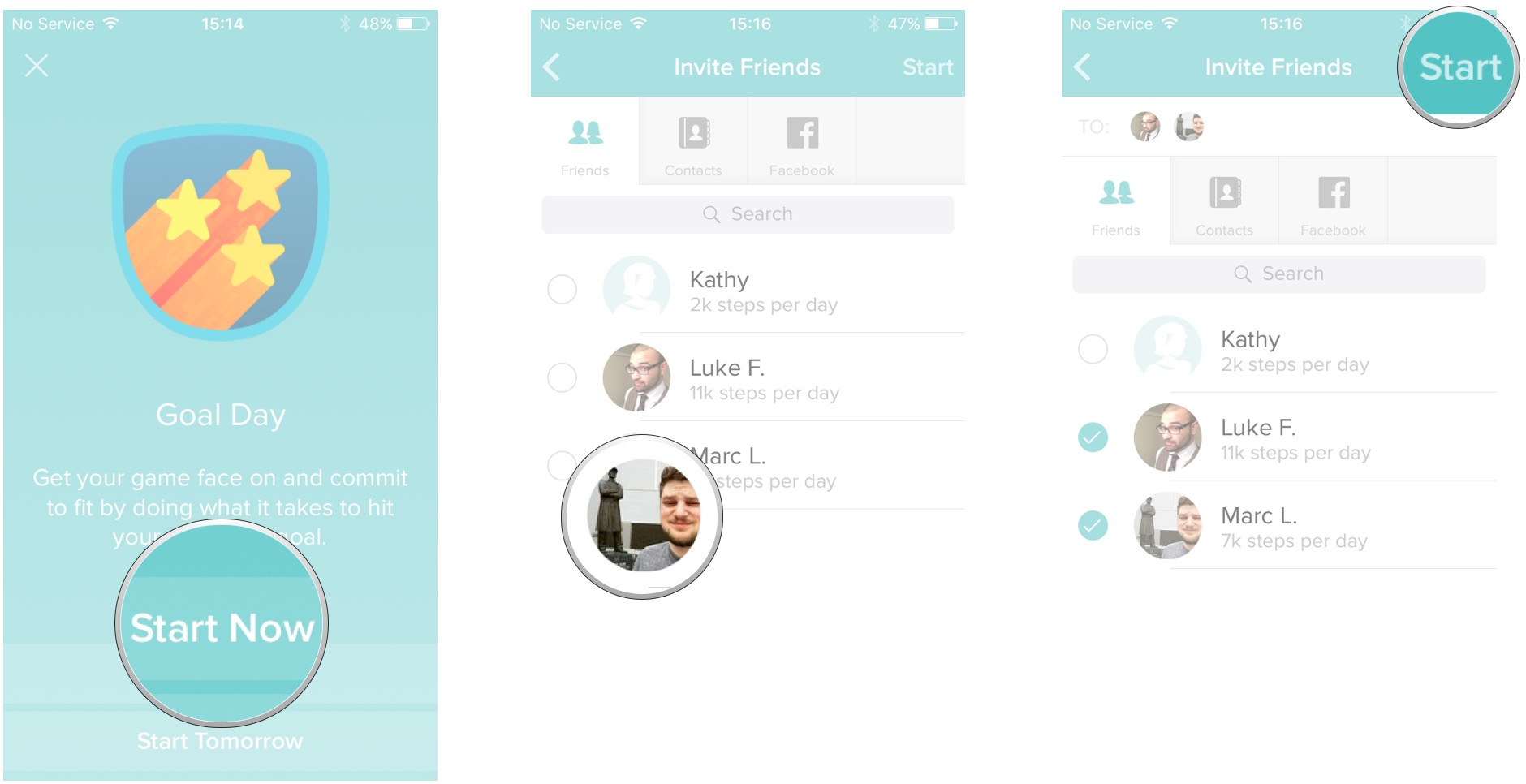


Once your friends accept the challenge, you'll be able to monitor their progress and cheer them on or taunt them from the Challenges screen.
How to accept a Challenge in Fitbit for iPhone and iPad
Sometimes your friends get a little too big for their britches and they send you a Fitbit challenge. The fools. Accept and show them who's the big boss with the hot sauce!
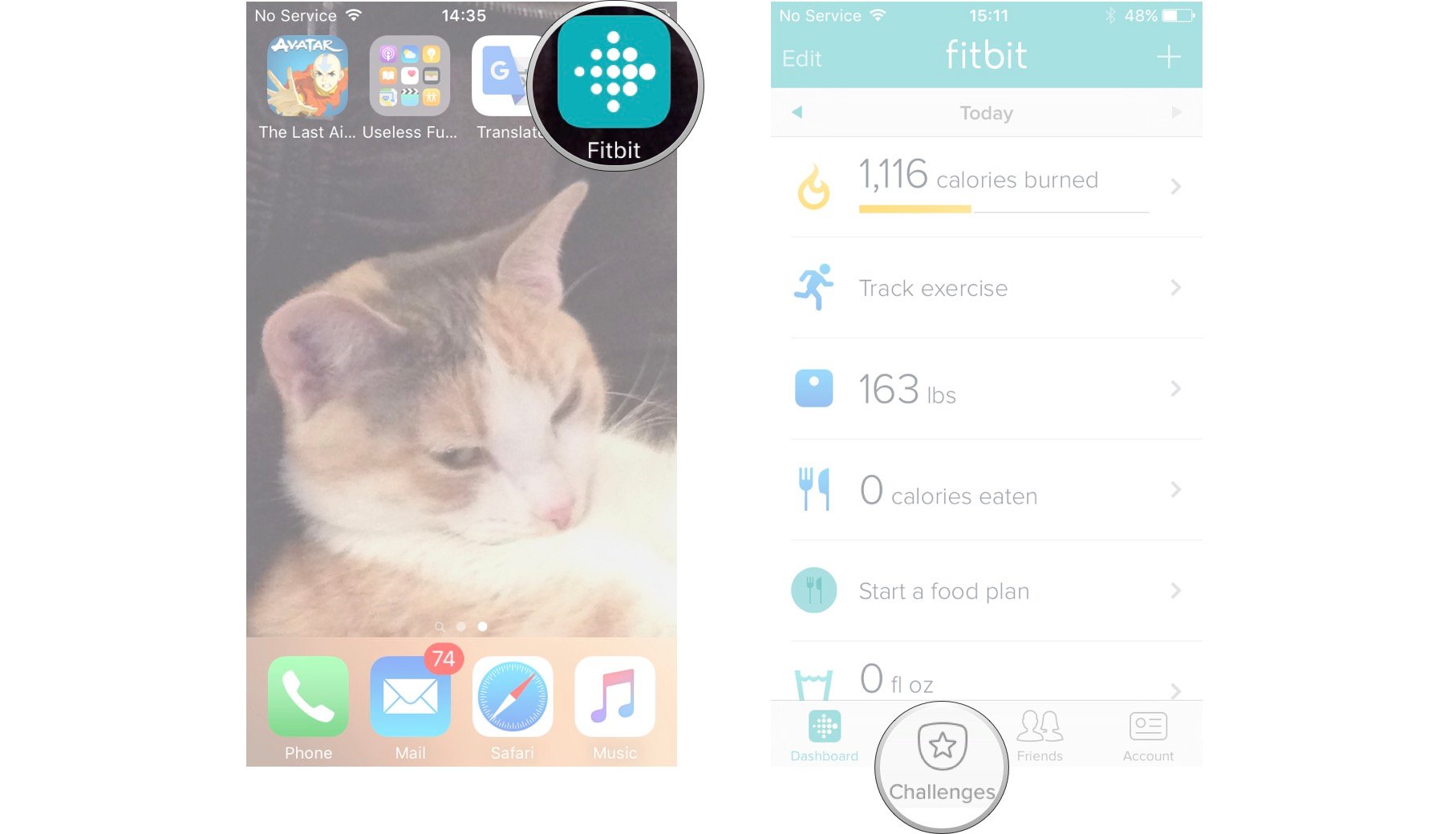
- Launch the Fitbit app from the Home screen. It looks like a white diamond made of circles, on a teal background.
-
Tap Challenges at the bottom of the screen. It's the little shield with the star on it.
- Tap the challenge you wish to join.
-
Tap Join the Challenge to get in there and raise heck.
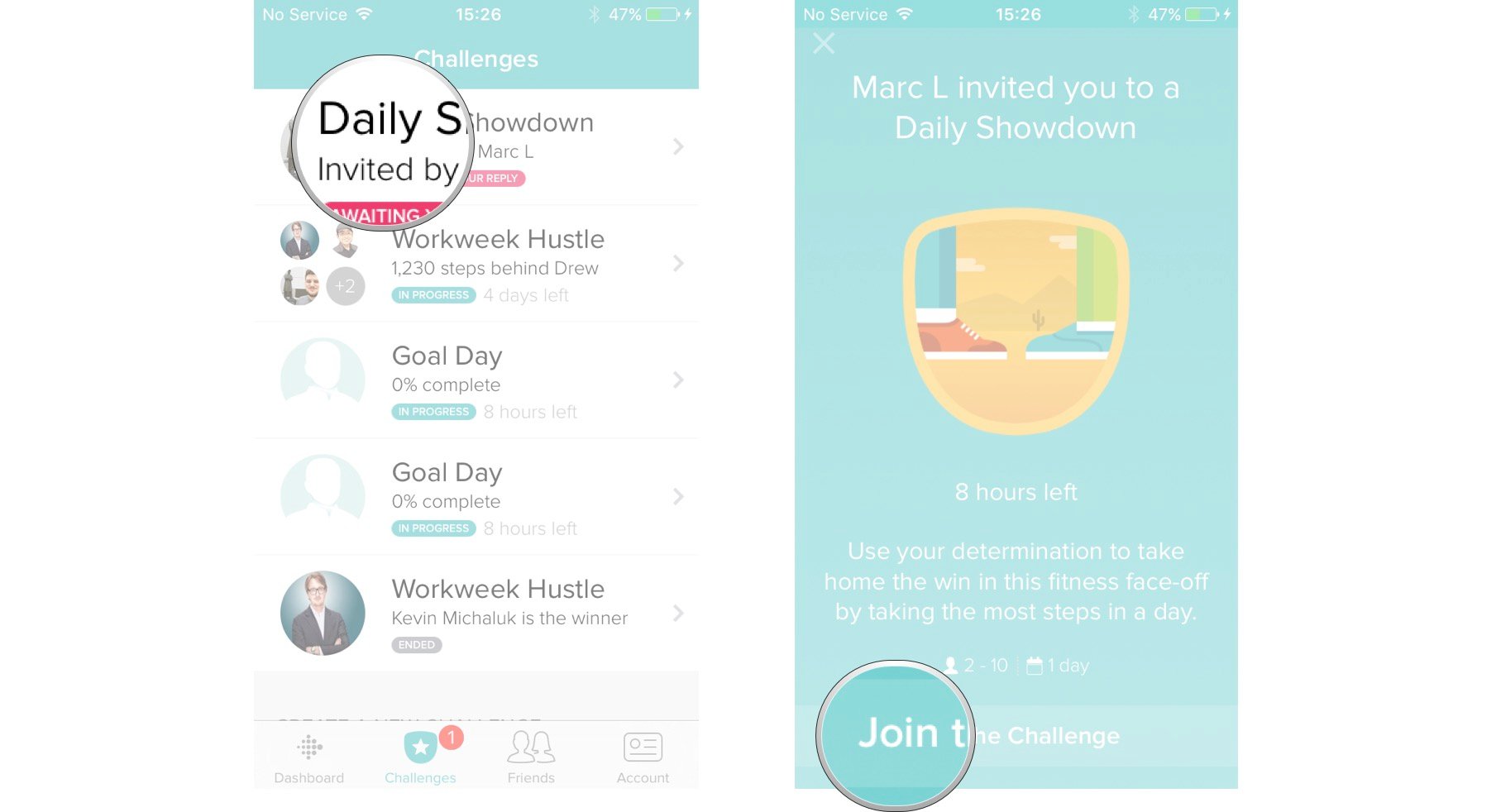


Now you're in it to win it! Send messages within challenges and cheer your Fitbit friends on! Just don't cheer them on too strongly. You do want to win, after all.
How to invite friends to an existing Challenge in Fitbit for iPhone and iPad
You've been challenged by a "pal" who's tall, thin, and ripped like a bus seat. Why should you have to suffer through getting your butt whooped alone? Invite some friends! Here's how:
- Launch the Fitbit app from your Home screen. It's a white diamond, made of little circles, on a teal background.
- Tap Challenges at the bottom of the screen. It's the shield with the star on it.
- Tap the Challenge to which you want to invite someone.
-
Tap Options on the top right of the screen.
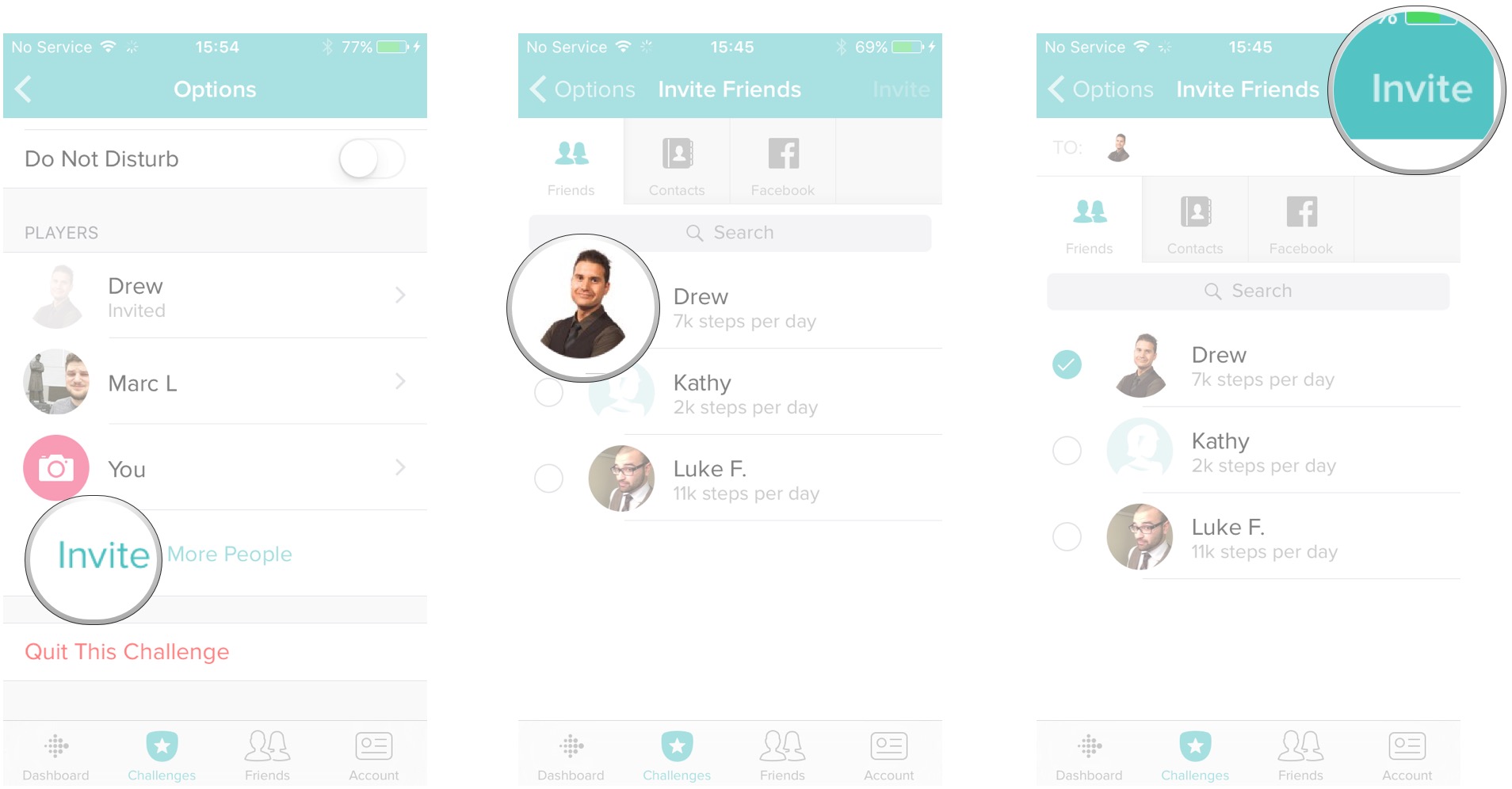
- Tap Invite More People in the list of Players.
- Tap the friend(s) you'd like to invite.
-
Tap Invite on the top right of the screen.


Once your friend or friends accept the challenge, they'll be thrown into the fray! If they decline, you'll just have to keep challenging them until they give in or delete you from their friends.
How to leave a Challenge in Fitbit for iPhone and iPad
Like any smart person, you know when you're beat. You could press on with a "never take 'no' for an answer" mentality, and I applaud you.
However, if buddy's taking 30 thousand steps a day and I'm barely hitting a grand, I'm out. Here's how to bow out with your dignity intact:
- Launch the Fitbit app from your Home screen. It's a white diamond, made of circles, on a turquoise background.
- Tap Challenges at the bottom of the screen. It's the shield with a star on it.
-
Tap the Challenge you'd like to exit.
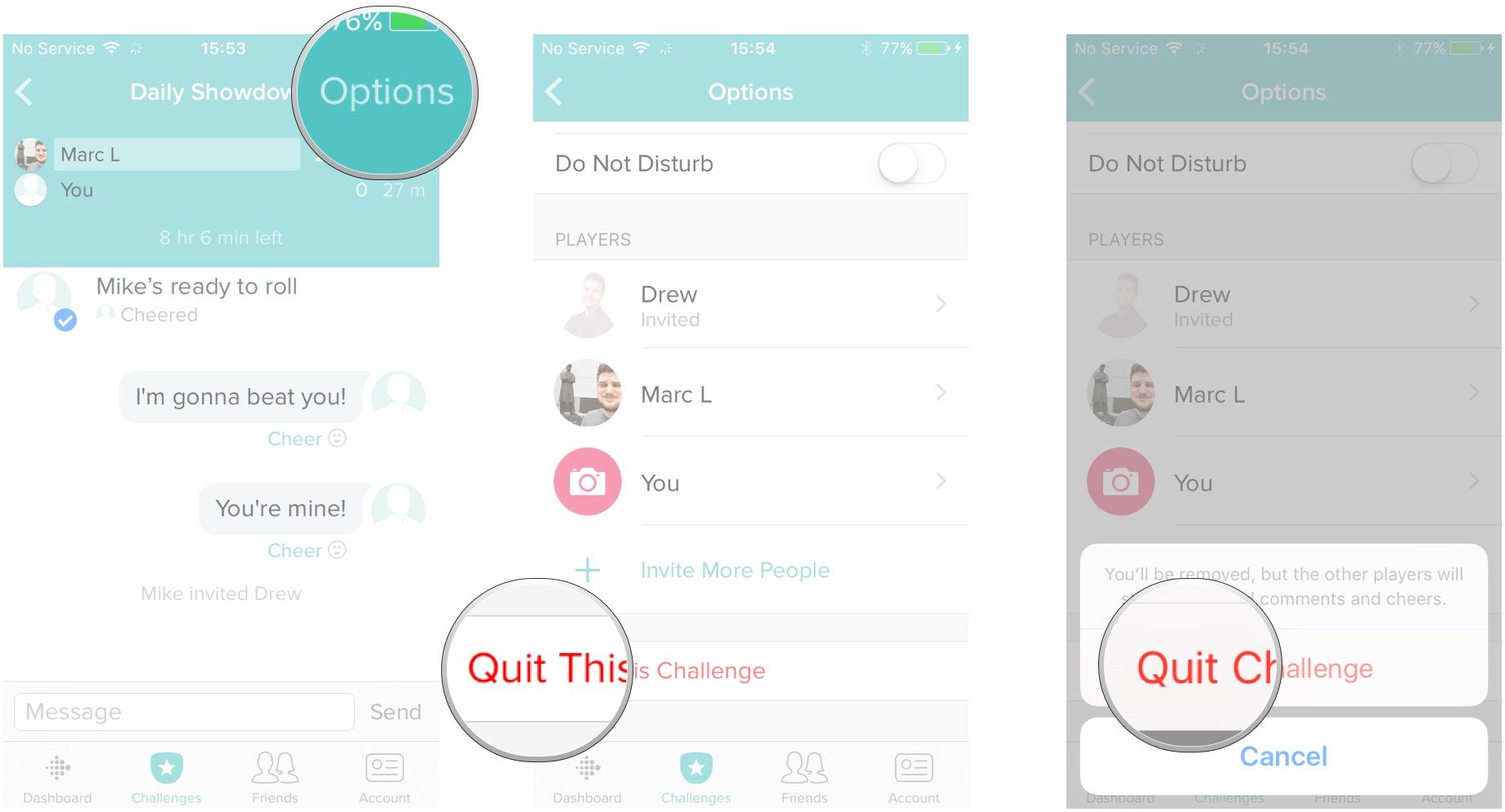
- Tap Options on the top right of the screen.
- Tap Quit This Challenge at the bottom of the screen.
-
Tap Quit Challenge in the pop-up. Tap Cancel if you picked the wrong challenge.

You're out of there — gracefully and without shame. They may say, "quitters never win," but I'd put sitting on the couch instead of climbing stairs in the 'W' column any day.
We may earn a commission for purchases using our links. Learn more.

Deja Vu
Which Pokémon remake is the best?
Remakes are meant to be the definitive version of a video game, but not all remakes are created equal. Here's what we thought of every Pokémon remake so far, and which one is the very best (like no one ever was).
How To Create A Challenge In Fitbit
Source: https://www.imore.com/how-use-challenges-fitbit-iphone-and-ipad
Posted by: duncanboyaceing.blogspot.com
0 Response to "How To Create A Challenge In Fitbit"
Post a Comment